Buttons
Buttons initiate actions and communicate their purpose through labels.
Usage
Use buttons to trigger actions. Labels should clearly describe the purpose and effect of the action, such as Add, Save, or Delete.
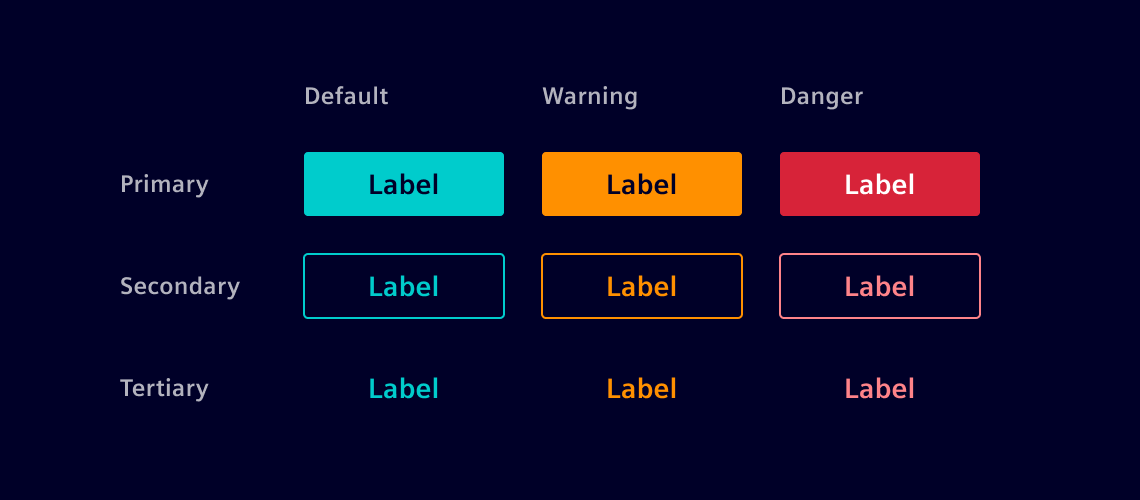
There are three semantic types:
- Default buttons for standard actions such as Save or Submit.
- Warning buttons for cautious decisions such as Overwrite or Restart.
- Danger buttons for destructive actions such as Delete or Remove.
Each button also carries a visual weight:
- Primary buttons highlight the main action of the page or task.
- Secondary buttons for supporting actions.
- Tertiary buttons for low-priority or less prominent actions.
Button link
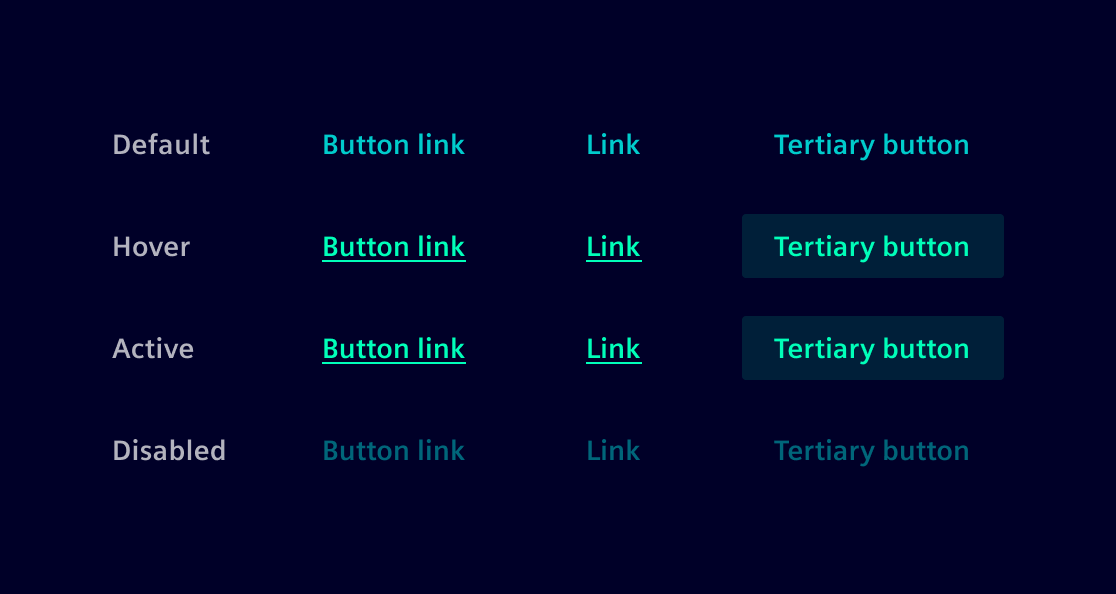
A button link is a button styled as a link.
Despite its link-like appearance, its primary distinction lies in its function: Links, built with the <a> HTML element, are designed for navigation, whereas button links, created using the <button> HTML element, are intended to trigger actions. This distinction ensures correct semantics, accessibility, and behavior.
While visually similar to a tertiary button, button links work well in tight layouts or inline with text, where a regular button would be too bulky.
Best practices
- Use only one primary button per page.
- Ensure call-to-action labels are straightforward and concise.
- Use single-line text for button labels; avoid multi-line text.
- When truncating text, ensure at least three characters of the content remain visible.
- Use the loading button to indicate ongoing processes.
- Use
spacing-6to define the space between buttons and other components/containers.
Design
Variants
Buttons support text, icon, or a combination of both.
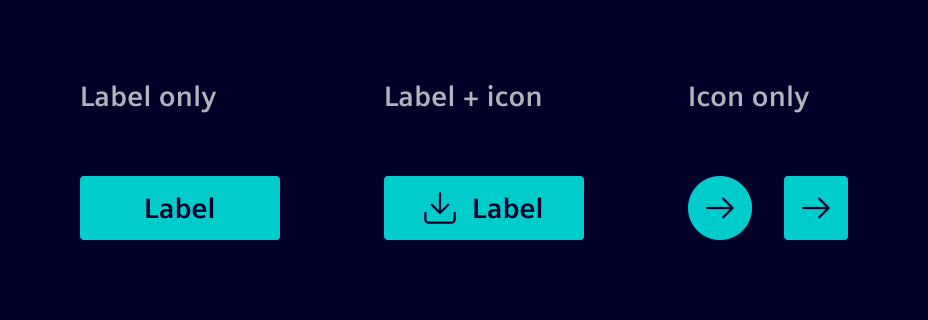
Icon-only buttons adapt their shape based on layout constraints and visual context.
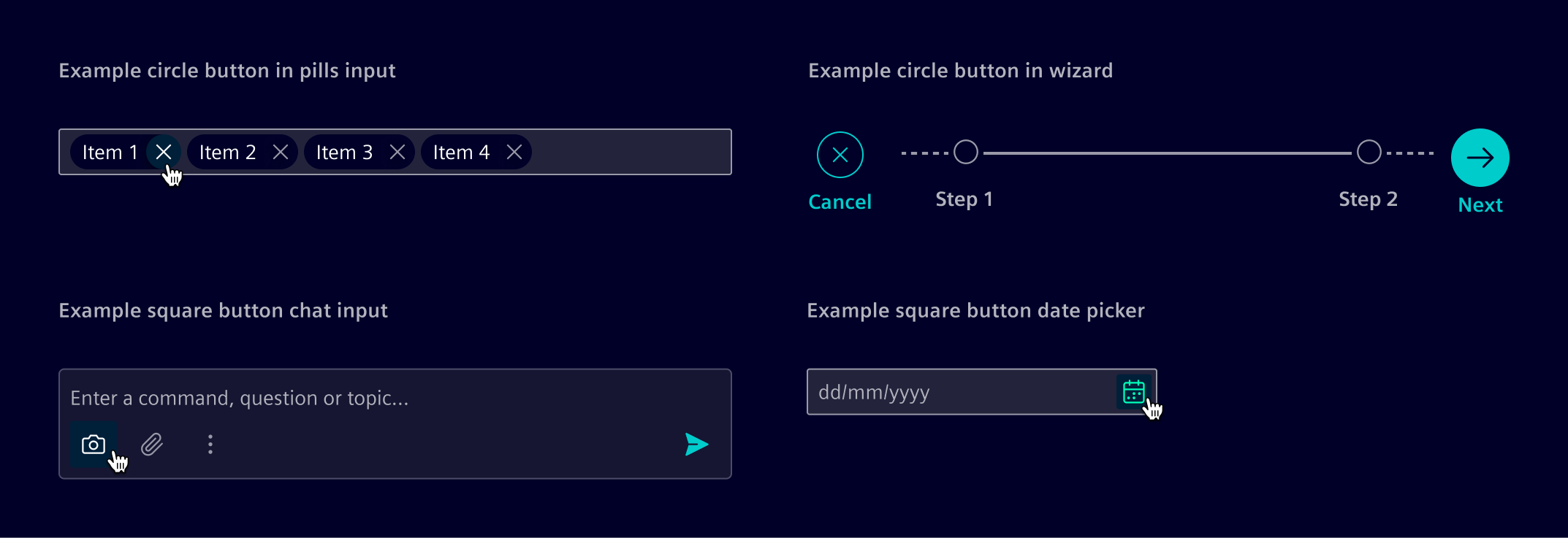
Circle buttons are used when the button is placed inside a circular container (e.g., pills) or in unconstrained, free-form contexts for standalone actions (e.g., overlays, floating controls, wizard). The circular shape signals a self-contained action and visually separates it from structured layouts.
Square buttons are used in structured layouts where consistent alignment is required (e.g., inputs, tables, cards). The rectangular shape anchors the action to the surrounding layout and scales better when multiple actions are placed side by side.
Size
Buttons are available in three height variants:
- Small (24px) for compact areas such as inside input fields.
- Default (32px) for general use across most layouts.
- Large (40px) for high-visibility actions or spacious layouts.
Button placement
The position and alignment of buttons is defined in relationship to their container. Buttons can be aligned right or center in relation to the parent container.
Related buttons
This is the case of two or more buttons that display related actions (e.g: save/cancel).
- Related buttons should all be the same width
- Spacing (margin) between related buttons is
spacing-s
Responsive grid
Typically, buttons are placed side by side. However, if the viewport becomes too narrow to display all the text label, buttons should be stacked following the responsive grid.
Text truncation
Text labels should be short and concise. When a long label cannot be avoided, truncate it with an ellipsis (…) at the end of the line. Only wrap the text when the full label is critical and truncation would cause loss of meaning.
Code
Buttons are implemented using CSS classes on native HTML elements. Use <button> for actions and <a> for navigation. No Angular component is required.
Usage
Apply the .btn base class together with a semantic variant such as .btn-primary. Always add type="button" to action buttons. Icon-only buttons must have an accessible name via aria-label, title or a visually hidden label.
Navigation buttons
When a navigation link needs the visual appearance of a button, such as the primary call to action on an info page, apply button classes to an <a> element.
<a class="btn btn-primary" href="https://siemens.com">Go back</a>
Placement
Use flex and grid utilities to handle long labels and adapt button layouts to available space:
- Wrapping labels: Without truncation, labels wrap onto additional lines as the available width decreases. Keep labels concise, and wrap only when users need to see the full label.
- Truncated labels: Use
.text-truncateto keep a long label on one line. Set a minimum width if needed to keep enough of the label visible. - Responsive layout: Use grid columns such as
.col-sm-6to stack buttons vertically below 576px and place them side by side at 576px and above. See Flexbox grid. - Dialog actions: Use
.modal-footerto right-align dialog actions and provide consistent spacing. - Custom footers: Use flex utilities such as
.d-flex,.flex-wrap,.justify-content-end, and.gap-6to create a similar layout or customize the alignment. See Flex utilities.
Except where otherwise noted, content on this site is licensed under MIT License.